
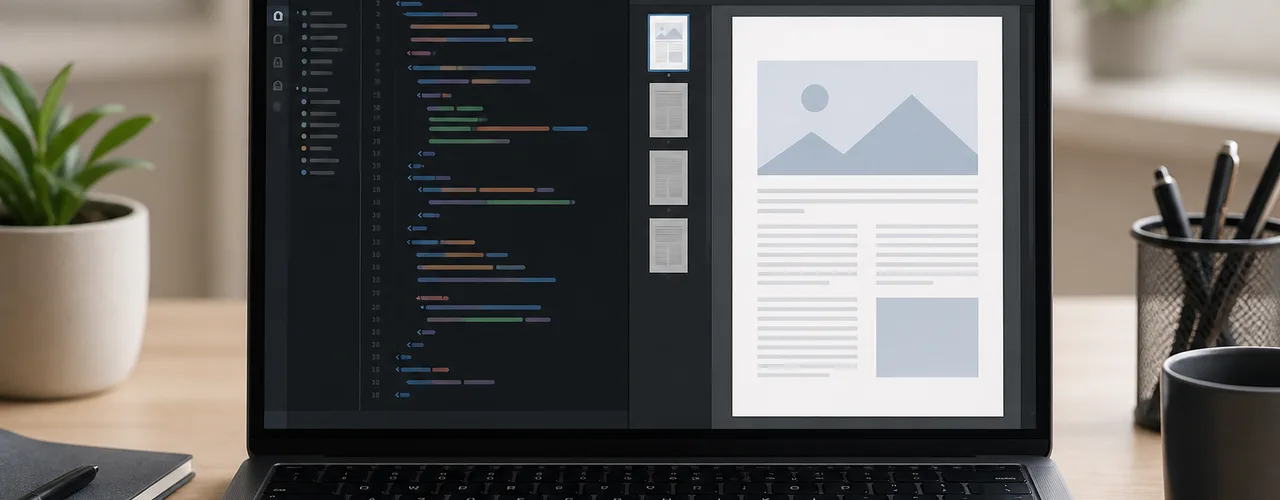
A saved HTML file can look fine in the browser and still produce a bad PDF.
Images vanish, sticky headers repeat, sidebars jump ahead of the article, and tables split across sheets. Print -> Save as PDF can be enough for a clean article or simple invoice; saved pages often need a source pass first.
With source access, you can inspect the HTML, remove or adjust the parts that do not belong in a document, preview the output, and then export.
When browser print is enough
Use the browser print dialog if the page is already designed for print:
- The page has a simple article layout.
- The print preview looks good on the first try.
- Images load correctly.
- Page breaks are acceptable.
- You do not need to edit the source.
There is no prize for using a more complicated tool when the browser already gives you the PDF you need.
When an HTML source editor is better
Open the .html file in the HTML to PDF converter when the source needs cleanup first:
- A saved page includes a sidebar, menu, footer, or cookie banner.
- The HTML has companion CSS or images that you can include in a saved-page ZIP bundle.
- You want to remove scripts before export.
- You need to keep the visible content but simplify the document.
- The PDF should be readable rather than a screenshot-like capture.
With source access, you can remove the junk before export. Browser print starts from the rendered page and may also apply the site's print styles, but it does not give you the same control over the source cleanup.
Clean preview and faithful preview are different jobs
Most HTML exports fall into one of two jobs.
For a clean document, the converter should foreground headings, paragraphs, images, tables, and the parts someone would actually read. For a faithful snapshot, it should preserve more of the saved page's layout, even when that includes navigation or other clutter, because the page itself is part of the record.
Pick that mode before you start editing. MD2FILE keeps the choice visible with clean preview and faithful snapshot options.
What to check before exporting
Before you trust the PDF, check these five things:
1. Missing images
Saved HTML often points to a sibling folder like page_files/image.png. If you only choose the .html file, those companion assets are not part of the import.
When you still have the saved-page folder, put the HTML and companion files into a ZIP and open that bundle instead. MD2FILE matches relative references, inlines included local stylesheets, and embeds supported local images when possible. Missing, oversized, blocked, or unmatched assets can still need cleanup, so confirm important images in preview.
If an image matters, confirm it appears in preview before exporting.
2. External fonts and styles
Some HTML files depend on remote CSS or fonts. If those resources are blocked, offline, or private, the PDF can look different from the original page.
Often the source file simply lacks what the converter needs to reproduce the page.
3. Scripts
Interactive pages often rely on JavaScript. A PDF is a static document. Menus, tabs, dashboards, charts, and collapsed sections may not behave the way they did on the live page.
If the visible content depends on clicking something first, open or simplify that content before export.
4. Page breaks
HTML was usually designed to scroll. PDFs have pages. A nice web layout can still break awkwardly across A4 or Letter sheets.
Scan the page boundaries in preview. Pay special attention to tables, images, and code blocks.
5. The actual reading order
CSS grid, flexbox, sidebars, and absolute positioning can make the visual order differ from the source order. For a clean document, reading order matters more than pixel-perfect placement.
If the PDF will be shared, read the first page top to bottom. You will catch most bad exports there.
Before you export a saved file
Open the HTML to PDF tool and load an .html, .htm, or .xhtml file. If the page depends on companion CSS or images, load a saved-page .zip bundle containing those files. The preview tells you whether the problem is missing assets, noisy page chrome, a layout issue, or simply the wrong output mode.
If you are making a readable document, remove obvious clutter first: menus, repeated footers, cookie banners, script-only widgets, and anything that would make no sense on paper. If you are preserving a record, leave more of the page alone and focus on whether the output is complete.
Either way, confirm images and important styles before exporting. A clean-looking first page is not enough if the second page drops a chart or splits a table in half.
After download, compare at least one page containing an image, one page containing a table or code block, and the final page against the selected preview mode. That small sample catches missing bundle assets, unexpected print styles, and content clipped near a page boundary.
If the page is mission-critical, keep the original HTML file too. A PDF is the shareable copy; the source is still the thing you can repair later.
Where it fits
If you are writing a document from scratch, Markdown is usually simpler. The Markdown to PDF converter gives you a cleaner authoring format and fewer layout surprises.
If the source already exists as HTML, especially a saved page or exported report, converting it directly is usually faster than rebuilding it in Markdown. And if the only source is a text-based PDF that needs to become editable again, use the PDF to Markdown converter instead.
Pick clean output for articles, invoices, and reports you expect someone to read. Pick faithful capture for saved pages where layout is part of the record.
When the source needs cleanup before either choice, use the browser-based HTML to PDF converter.